> ## Documentation Index
> Fetch the complete documentation index at: https://docs.rooler.ai/llms.txt
> Use this file to discover all available pages before exploring further.
# Forgot Password
> Reset your password if you can't access your account
## Overview
If you've forgotten your password or are locked out of your account, you can reset it using the password recovery process. The reset link is valid for one hour for security purposes.
Password reset links expire after 1 hour. If your link expires, you'll need to request a new one.
## Password Reset Process
Follow these steps to reset your password:
Navigate to [app.rooler.ai](https://app.rooler.ai)
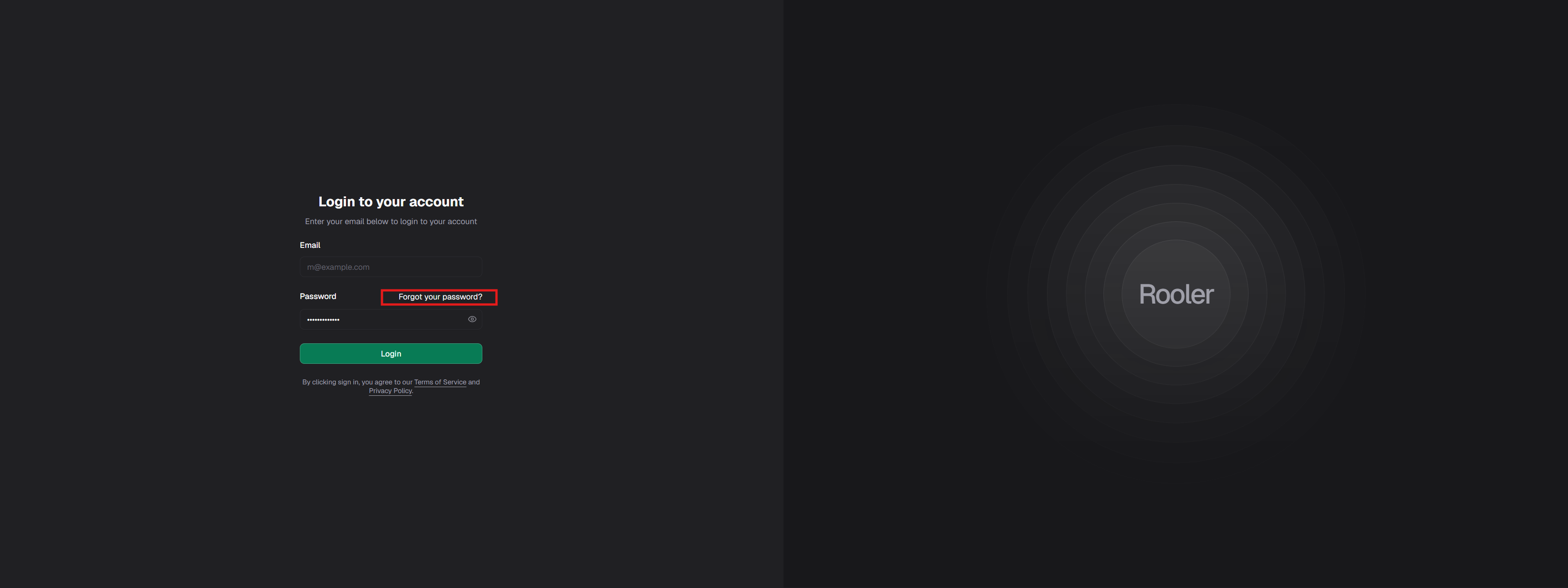
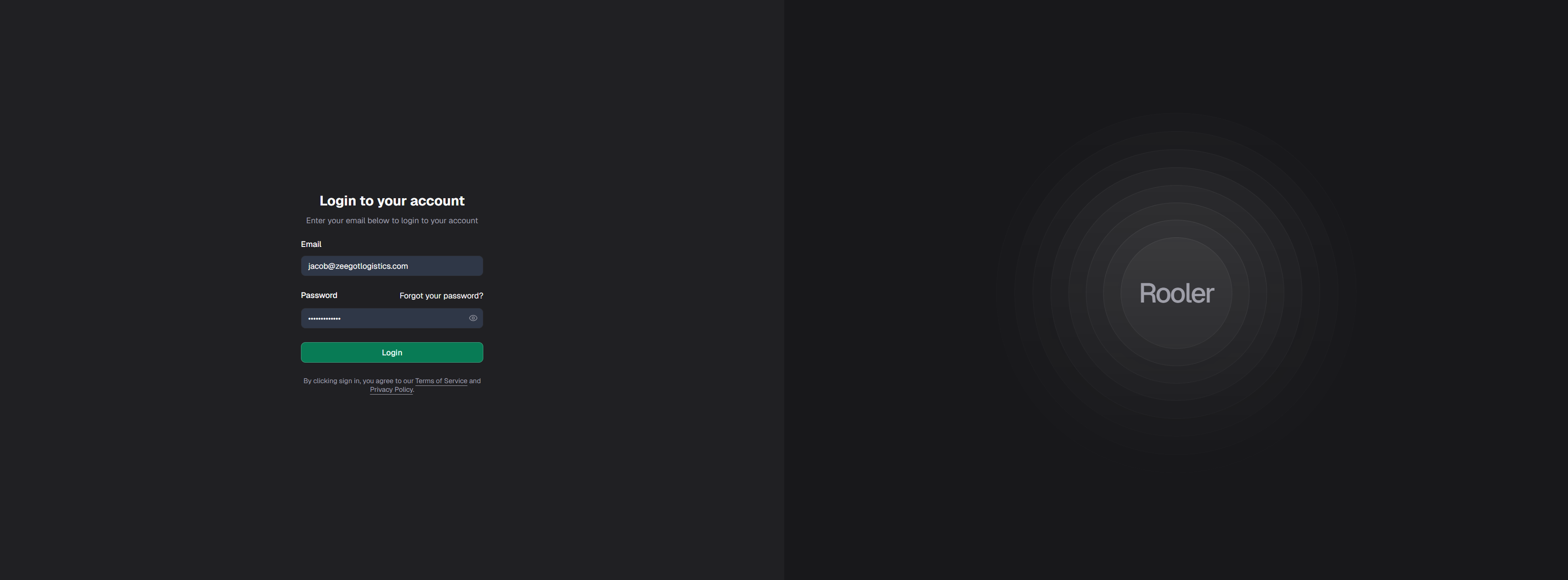 On the login page, click the **Forgot Password?** link
 Enter the email address associated with your Rooler account
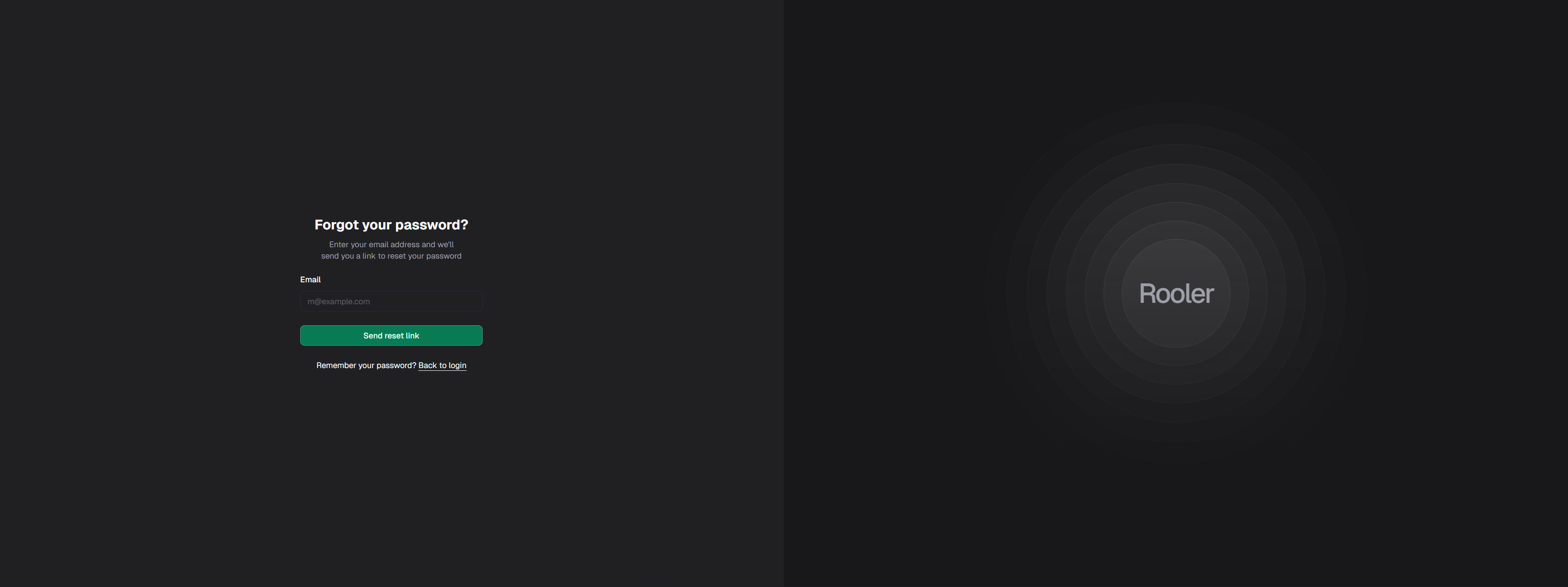 Click **Send Reset Link** or **Submit**
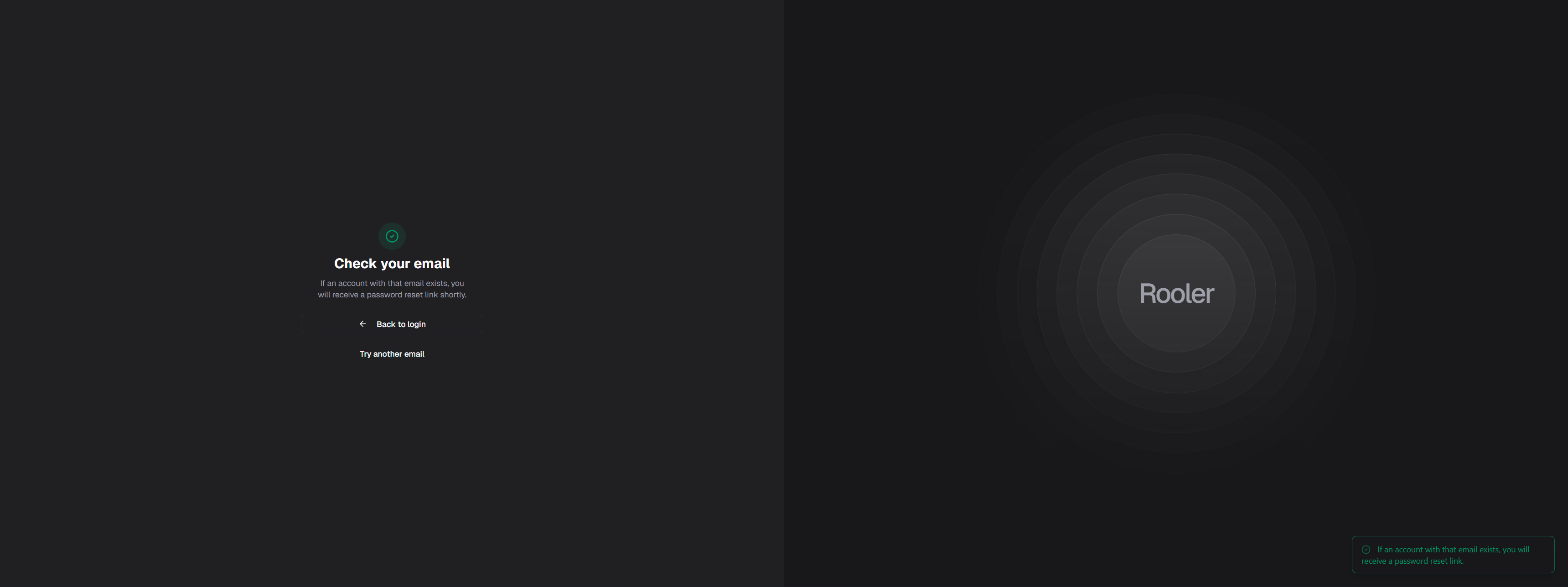
You'll see a confirmation message that the reset email has been sent
Click **Send Reset Link** or **Submit**
You'll see a confirmation message that the reset email has been sent
 The email should arrive within a few minutes. Check your spam/junk folder if you don't see it in your inbox.
Open the password reset email from Rooler. The email contains:
* A reset button
* A reset link (if button doesn't work)
* An expiration time (1 hour from when you requested it)
The email should arrive within a few minutes. Check your spam/junk folder if you don't see it in your inbox.
Open the password reset email from Rooler. The email contains:
* A reset button
* A reset link (if button doesn't work)
* An expiration time (1 hour from when you requested it)
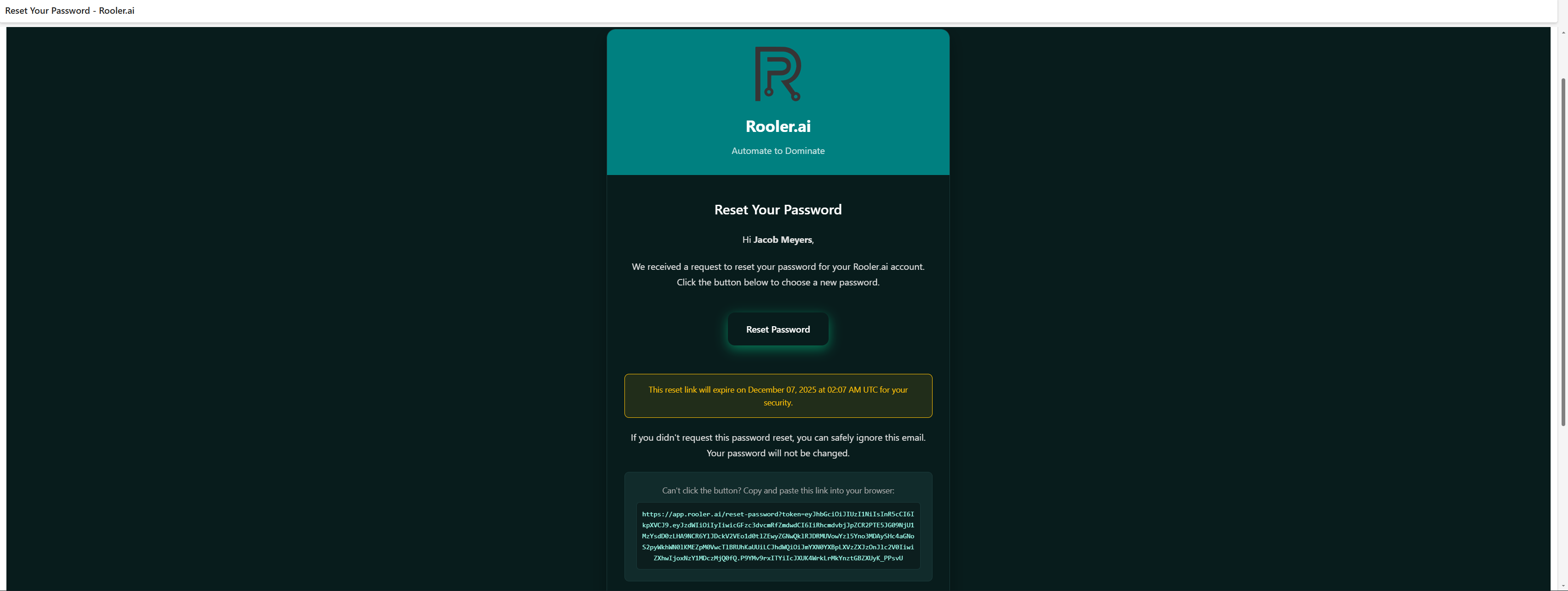 This link expires in 1 hour for security. If it expires, request a new reset link.
Either:
* Click the **Reset Password** button in the email
* Or copy the reset link and paste it into your browser
On the password reset page, enter your new password twice:
This link expires in 1 hour for security. If it expires, request a new reset link.
Either:
* Click the **Reset Password** button in the email
* Or copy the reset link and paste it into your browser
On the password reset page, enter your new password twice:
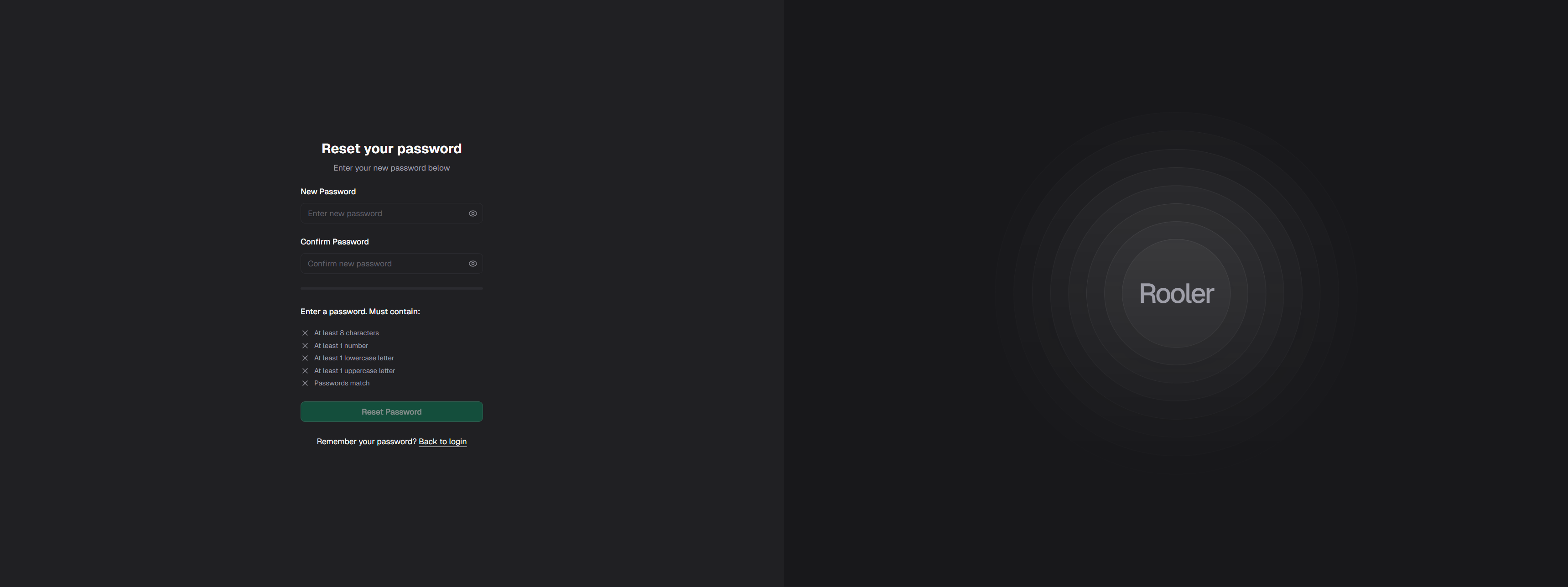 Your new password must meet these requirements:
* At least 8 characters
* At least 1 number
* At least 1 lowercase letter
* At least 1 uppercase letter
Click **Reset Password**
If successful, you'll see a success toast notification briefly appear.
If there's an error (expired link, passwords don't match, etc.), you'll see an error toast notification.
After successfully resetting your password, you'll be redirected to the login page automatically.
Use your new password to log in:
## Password Requirements
When creating your new password, ensure it meets these security requirements:
| Requirement | Description |
| ------------- | --------------------------------- |
| **Length** | Minimum 8 characters |
| **Numbers** | At least 1 number (0-9) |
| **Lowercase** | At least 1 lowercase letter (a-z) |
| **Uppercase** | At least 1 uppercase letter (A-Z) |
Create a strong, unique password that you don't use for other services. Consider using a password manager to generate and store secure passwords.
## Troubleshooting
If you don't receive the reset email within 5 minutes:
1. **Check spam/junk folder** - Reset emails sometimes get filtered
2. **Verify email address** - Make sure you entered the correct email
3. **Wait a few minutes** - Email delivery may be delayed
4. **Request again** - Try requesting another reset link
5. **Contact admin** - Your administrator can verify your account email
6. **Contact support** - Email [support@rooler.ai](mailto:support@rooler.ai)
If your reset link has expired (after 1 hour):
1. Return to the login page
2. Click **Forgot Password?** again
3. Enter your email address
4. Request a new reset link
5. Complete the process within 1 hour
Reset links expire for security. Each link can only be used once.
If clicking the reset link doesn't work:
1. **Copy the link** - Copy the full URL from the email
2. **Paste into browser** - Open a new browser tab and paste the link
3. **Try different browser** - Use Chrome, Firefox, Safari, or Edge
4. **Check for spaces** - Ensure no extra spaces when copying
5. **Request new link** - If link is malformed, request a new one
If you receive an error about password requirements:
1. Ensure at least 8 characters
2. Include at least one number
3. Include at least one lowercase letter
4. Include at least one uppercase letter
5. Make sure both password fields match exactly
Example of a strong password: `Rooler2024!`
If you've tried everything and still can't reset:
1. **Contact your administrator** - They can reset your password manually
2. **Verify account status** - Ensure your account is active
3. **Check email settings** - Make sure your email can receive external emails
4. **Contact support** - Email [support@rooler.ai](mailto:support@rooler.ai) with:
* Your email address
* When you requested the reset
* Any error messages you received
## Security Notes
**Why Reset Links Expire**
Password reset links expire after 1 hour as a security measure. This prevents:
* Old reset links from being used if your email is compromised
* Unauthorized password changes from stale links
* Security risks from forgotten reset requests
**Suspicious Reset Emails?**
If you receive a password reset email but didn't request one:
1. Do NOT click the link
2. Delete the email immediately
3. Log into your account to verify security
4. Change your password from your profile
5. Contact your administrator
6. Report to [support@rooler.ai](mailto:support@rooler.ai)
## After Resetting Your Password
Once you've successfully reset your password:
✅ **Log in immediately** - Test your new password\
✅ **Update password manager** - If you use one\
✅ **Verify account access** - Make sure everything works\
✅ **Review account activity** - Check for any suspicious activity\
✅ **Enable additional security** - Ask your admin about available options
## Alternative: Contact Your Administrator
If the password reset process isn't working, your administrator can:
* Manually reset your password
* Send you new temporary credentials
* Verify your account status
* Check for any account restrictions
* Assist with email delivery issues
Contact your organization's Rooler administrator for assistance.
## Related Pages
Learn about secure login practices
Manage your account information
Contact support for help
Report technical problems
Your new password must meet these requirements:
* At least 8 characters
* At least 1 number
* At least 1 lowercase letter
* At least 1 uppercase letter
Click **Reset Password**
If successful, you'll see a success toast notification briefly appear.
If there's an error (expired link, passwords don't match, etc.), you'll see an error toast notification.
After successfully resetting your password, you'll be redirected to the login page automatically.
Use your new password to log in:
## Password Requirements
When creating your new password, ensure it meets these security requirements:
| Requirement | Description |
| ------------- | --------------------------------- |
| **Length** | Minimum 8 characters |
| **Numbers** | At least 1 number (0-9) |
| **Lowercase** | At least 1 lowercase letter (a-z) |
| **Uppercase** | At least 1 uppercase letter (A-Z) |
Create a strong, unique password that you don't use for other services. Consider using a password manager to generate and store secure passwords.
## Troubleshooting
If you don't receive the reset email within 5 minutes:
1. **Check spam/junk folder** - Reset emails sometimes get filtered
2. **Verify email address** - Make sure you entered the correct email
3. **Wait a few minutes** - Email delivery may be delayed
4. **Request again** - Try requesting another reset link
5. **Contact admin** - Your administrator can verify your account email
6. **Contact support** - Email [support@rooler.ai](mailto:support@rooler.ai)
If your reset link has expired (after 1 hour):
1. Return to the login page
2. Click **Forgot Password?** again
3. Enter your email address
4. Request a new reset link
5. Complete the process within 1 hour
Reset links expire for security. Each link can only be used once.
If clicking the reset link doesn't work:
1. **Copy the link** - Copy the full URL from the email
2. **Paste into browser** - Open a new browser tab and paste the link
3. **Try different browser** - Use Chrome, Firefox, Safari, or Edge
4. **Check for spaces** - Ensure no extra spaces when copying
5. **Request new link** - If link is malformed, request a new one
If you receive an error about password requirements:
1. Ensure at least 8 characters
2. Include at least one number
3. Include at least one lowercase letter
4. Include at least one uppercase letter
5. Make sure both password fields match exactly
Example of a strong password: `Rooler2024!`
If you've tried everything and still can't reset:
1. **Contact your administrator** - They can reset your password manually
2. **Verify account status** - Ensure your account is active
3. **Check email settings** - Make sure your email can receive external emails
4. **Contact support** - Email [support@rooler.ai](mailto:support@rooler.ai) with:
* Your email address
* When you requested the reset
* Any error messages you received
## Security Notes
**Why Reset Links Expire**
Password reset links expire after 1 hour as a security measure. This prevents:
* Old reset links from being used if your email is compromised
* Unauthorized password changes from stale links
* Security risks from forgotten reset requests
**Suspicious Reset Emails?**
If you receive a password reset email but didn't request one:
1. Do NOT click the link
2. Delete the email immediately
3. Log into your account to verify security
4. Change your password from your profile
5. Contact your administrator
6. Report to [support@rooler.ai](mailto:support@rooler.ai)
## After Resetting Your Password
Once you've successfully reset your password:
✅ **Log in immediately** - Test your new password\
✅ **Update password manager** - If you use one\
✅ **Verify account access** - Make sure everything works\
✅ **Review account activity** - Check for any suspicious activity\
✅ **Enable additional security** - Ask your admin about available options
## Alternative: Contact Your Administrator
If the password reset process isn't working, your administrator can:
* Manually reset your password
* Send you new temporary credentials
* Verify your account status
* Check for any account restrictions
* Assist with email delivery issues
Contact your organization's Rooler administrator for assistance.
## Related Pages
Learn about secure login practices
Manage your account information
Contact support for help
Report technical problems