> ## Documentation Index
> Fetch the complete documentation index at: https://docs.rooler.ai/llms.txt
> Use this file to discover all available pages before exploring further.
# Profile Settings
> Manage your personal information and account preferences
## Overview
Your profile contains your personal information, contact details, and account preferences. Keeping your profile up to date ensures smooth communication and proper identification within your organization.
## Accessing Your Profile
You can access your profile settings in two ways:
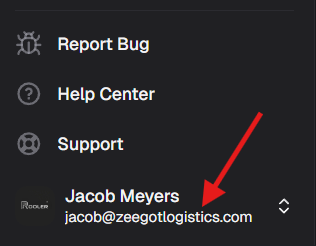
1. Click your name in the bottom left corner
 2. Click **Profile**
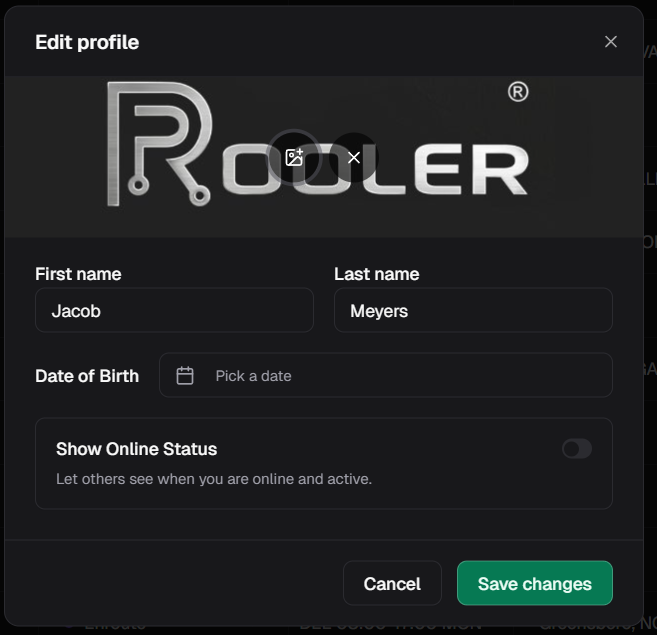
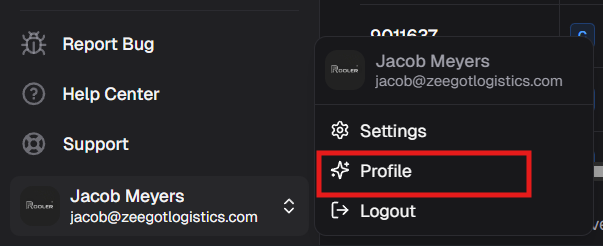 3. Your profile dialog will open
 1. Click your name in the bottom left corner
2. Select **Settings**
1. Click your name in the bottom left corner
2. Select **Settings**
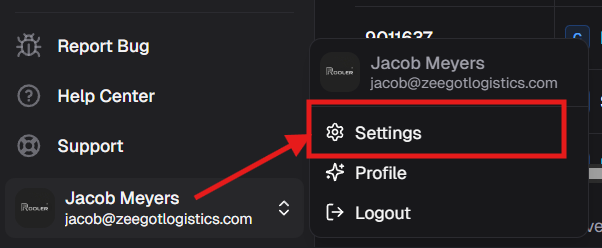 3. Click the **Account** tab
 ## Profile Information
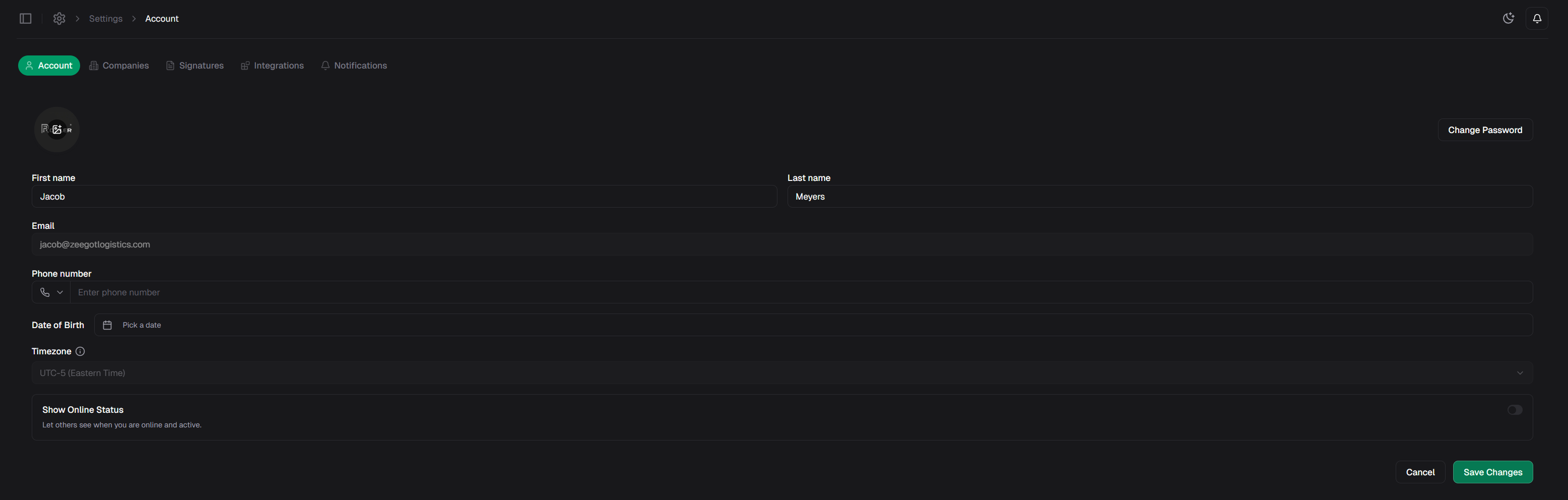
Your profile contains the following information:
### Personal Details
**First Name**\
Your given name as it appears in the system.
**Last Name**\
Your surname or family name.
**Email**\
Your email address used for:
* Account authentication
* System notifications
* Communication from Rooler
* Integration connections (Email, Telegram)
Your email address is set by your administrator and typically cannot be changed directly. Contact your admin if you need to update your email.
**Phone Number** (Optional)\
Your contact phone number for:
* Emergency communications
* SMS notifications (if enabled)
* Team contact information
**Date of Birth** (Optional)\
Used for identification and internal records.
**Timezone**\
Your local timezone ensures that all times and dates are displayed correctly for your location. This affects:
* Appointment times
* Load schedules
* Activity timestamps
* Report generation
Setting the correct timezone is crucial for accurate scheduling and tracking, especially if your team works across multiple time zones.
### Visibility Settings
**Show Online Status**\
Control whether other users can see when you're online and active in Rooler.
* **Enabled** - Others can see when you're online
* **Disabled** - Your online status is hidden
## Editing Your Profile
To update your profile information:
1. Access your profile using either method above
2. Click on any field you want to edit
3. Enter your new information
4. Click **Save Changes** at the bottom
Make sure all information is accurate, especially your email and phone number, as these are used for important communications.
## Changing Your Password
You can change your password directly from your profile:
1. Open your profile settings
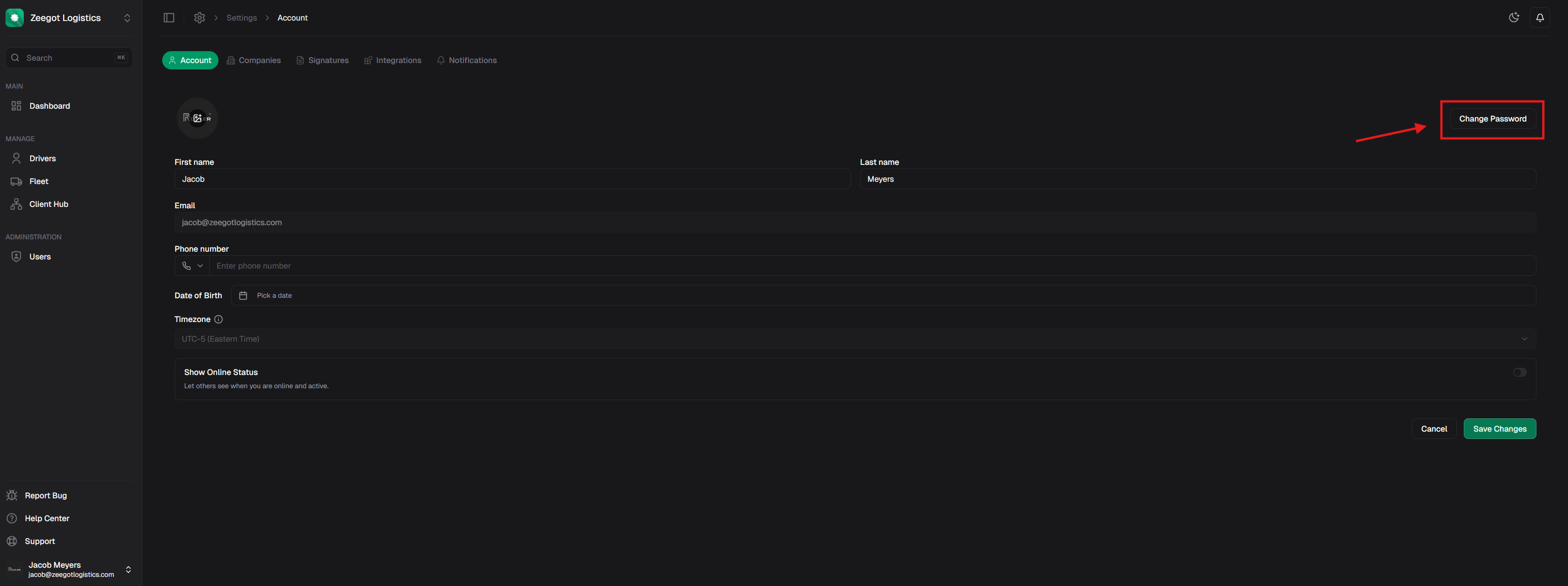
2. Click the **Change Password** button in the top right
## Profile Information
Your profile contains the following information:
### Personal Details
**First Name**\
Your given name as it appears in the system.
**Last Name**\
Your surname or family name.
**Email**\
Your email address used for:
* Account authentication
* System notifications
* Communication from Rooler
* Integration connections (Email, Telegram)
Your email address is set by your administrator and typically cannot be changed directly. Contact your admin if you need to update your email.
**Phone Number** (Optional)\
Your contact phone number for:
* Emergency communications
* SMS notifications (if enabled)
* Team contact information
**Date of Birth** (Optional)\
Used for identification and internal records.
**Timezone**\
Your local timezone ensures that all times and dates are displayed correctly for your location. This affects:
* Appointment times
* Load schedules
* Activity timestamps
* Report generation
Setting the correct timezone is crucial for accurate scheduling and tracking, especially if your team works across multiple time zones.
### Visibility Settings
**Show Online Status**\
Control whether other users can see when you're online and active in Rooler.
* **Enabled** - Others can see when you're online
* **Disabled** - Your online status is hidden
## Editing Your Profile
To update your profile information:
1. Access your profile using either method above
2. Click on any field you want to edit
3. Enter your new information
4. Click **Save Changes** at the bottom
Make sure all information is accurate, especially your email and phone number, as these are used for important communications.
## Changing Your Password
You can change your password directly from your profile:
1. Open your profile settings
2. Click the **Change Password** button in the top right
 3. Enter your current password and new password
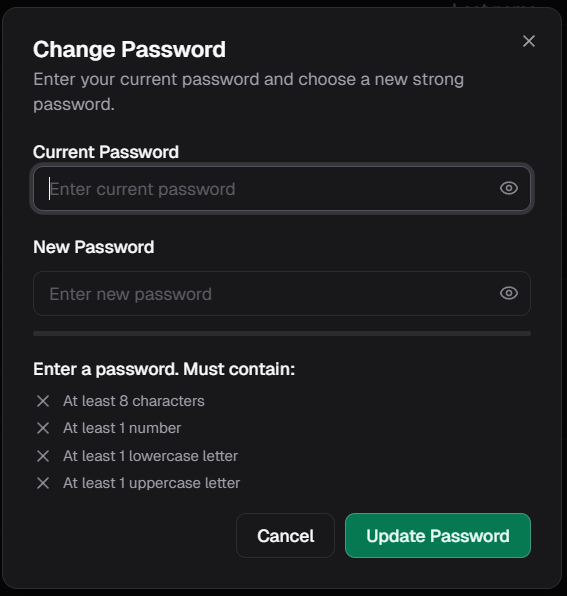 4. Click **Update Password**
For detailed password requirements and security best practices, see [Authentication](/account/authentication).
## Profile Picture
Your profile picture helps team members identify you quickly throughout the application.
Profile picture functionality is managed by your administrator. Contact your admin if you need to update your profile photo.
## Best Practices
* Update your phone number if it changes
* Verify your timezone when traveling or relocating
* Keep your emergency contact information accurate
* Use your real name for clear identification
* Provide accurate contact details
* Set an appropriate profile picture
* Be mindful of what information you make visible
* Use the online status toggle to control your availability
* Only share necessary personal information
* Verify your timezone is set correctly
* Update it when traveling to different time zones
* This ensures accurate scheduling and communication
## Troubleshooting
### Can't Edit Email Address?
Your email address is typically set by your administrator and cannot be changed directly through your profile. If you need to update your email:
1. Contact your organization's administrator
2. They can update your email in the user management system
3. You'll receive new login credentials at your updated email
### Changes Not Saving?
If your profile changes aren't saving:
1. Ensure all required fields are filled out
2. Check that your information meets any format requirements
3. Verify you have a stable internet connection
4. Try refreshing the page and making changes again
5. Contact support if the issue persists
### Wrong Timezone Showing?
If times and dates appear incorrect:
1. Open your profile settings
2. Verify your timezone setting
3. Update to your correct local timezone
4. Save changes
5. Refresh the page to see corrected times
## Related Pages
Learn about login and password security
Set up your digital signature
For admins: Managing team members
Need help with your profile?
4. Click **Update Password**
For detailed password requirements and security best practices, see [Authentication](/account/authentication).
## Profile Picture
Your profile picture helps team members identify you quickly throughout the application.
Profile picture functionality is managed by your administrator. Contact your admin if you need to update your profile photo.
## Best Practices
* Update your phone number if it changes
* Verify your timezone when traveling or relocating
* Keep your emergency contact information accurate
* Use your real name for clear identification
* Provide accurate contact details
* Set an appropriate profile picture
* Be mindful of what information you make visible
* Use the online status toggle to control your availability
* Only share necessary personal information
* Verify your timezone is set correctly
* Update it when traveling to different time zones
* This ensures accurate scheduling and communication
## Troubleshooting
### Can't Edit Email Address?
Your email address is typically set by your administrator and cannot be changed directly through your profile. If you need to update your email:
1. Contact your organization's administrator
2. They can update your email in the user management system
3. You'll receive new login credentials at your updated email
### Changes Not Saving?
If your profile changes aren't saving:
1. Ensure all required fields are filled out
2. Check that your information meets any format requirements
3. Verify you have a stable internet connection
4. Try refreshing the page and making changes again
5. Contact support if the issue persists
### Wrong Timezone Showing?
If times and dates appear incorrect:
1. Open your profile settings
2. Verify your timezone setting
3. Update to your correct local timezone
4. Save changes
5. Refresh the page to see corrected times
## Related Pages
Learn about login and password security
Set up your digital signature
For admins: Managing team members
Need help with your profile?