> ## Documentation Index
> Fetch the complete documentation index at: https://docs.rooler.ai/llms.txt
> Use this file to discover all available pages before exploring further.
# Email Signature
> Set up your professional email signature for all outgoing messages
## Overview
Email signatures are essential for maintaining professional communication with your clients and brokers. When you set up a signature in Rooler, it will be automatically attached to every email you send through the platform's email integration.
Your signature helps identify you, provides contact information, and adds a professional touch to all your email communications.
## Why Use Email Signatures?
* **Professional Identity** - Clearly identify yourself in every email
* **Contact Information** - Provide your phone, email, and company details
* **Consistent Branding** - Maintain company branding across all communications
* **Legal Compliance** - Include required business information
* **Save Time** - Automatically added to every email
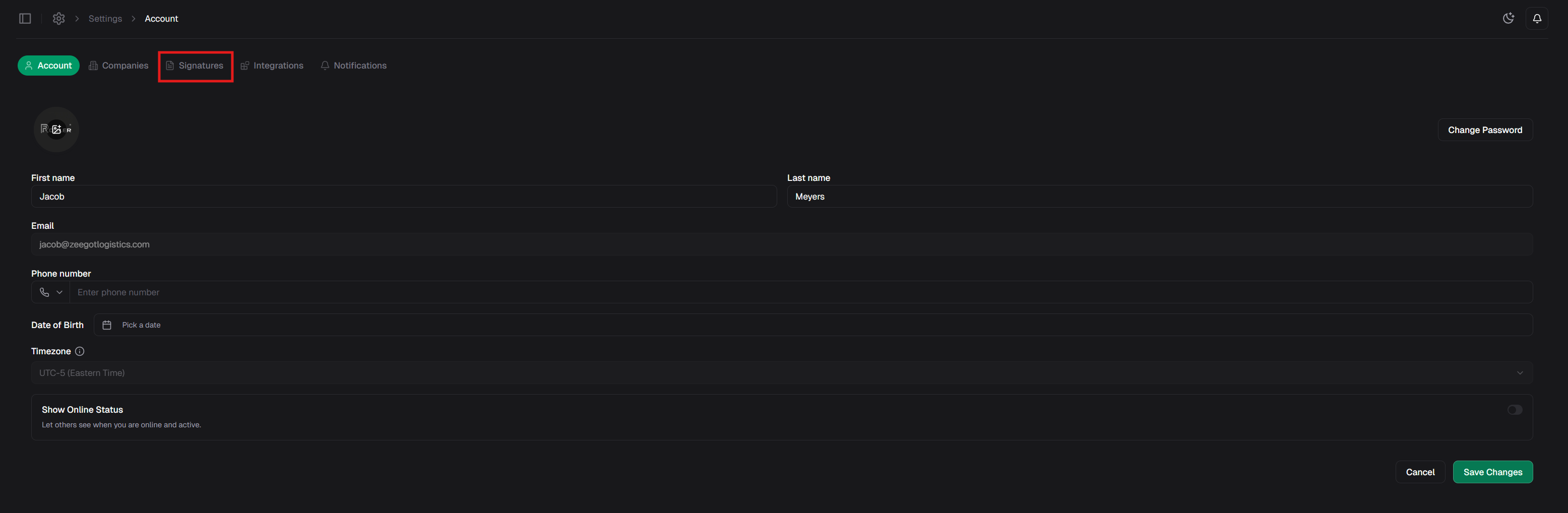
## Accessing Signature Settings
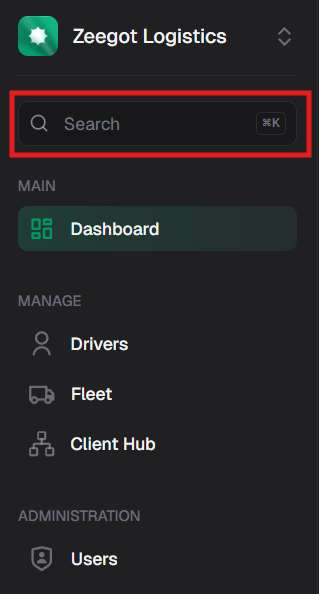
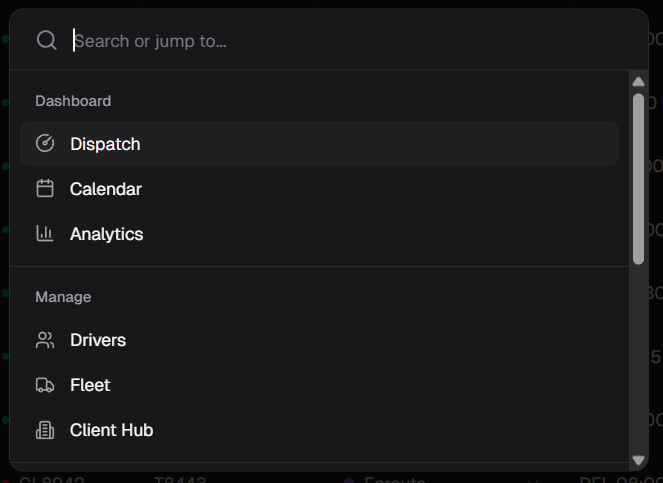
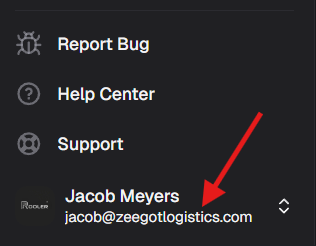
You can access your signature settings in two ways:
Press `Ctrl+K` (or `Cmd+K` on Mac) to open the command palette:
 Type "signature" to jump directly to signature settings:
 1. Click your name in the bottom left corner
 2. Select **Settings**
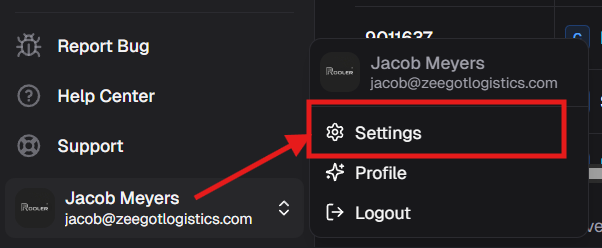 3. Click the **Signatures** tab
 ## Creating Your Signature
If you haven't created a signature yet, you'll see an empty signature page:
## Creating Your Signature
If you haven't created a signature yet, you'll see an empty signature page:
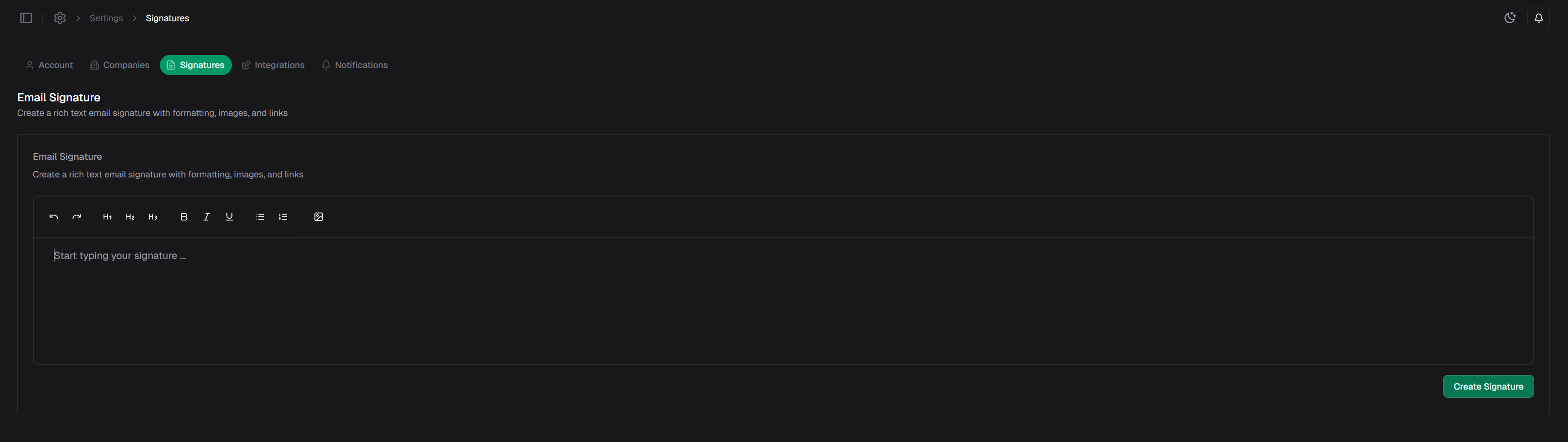 Click **Create Signature** or **Add New** to get started.
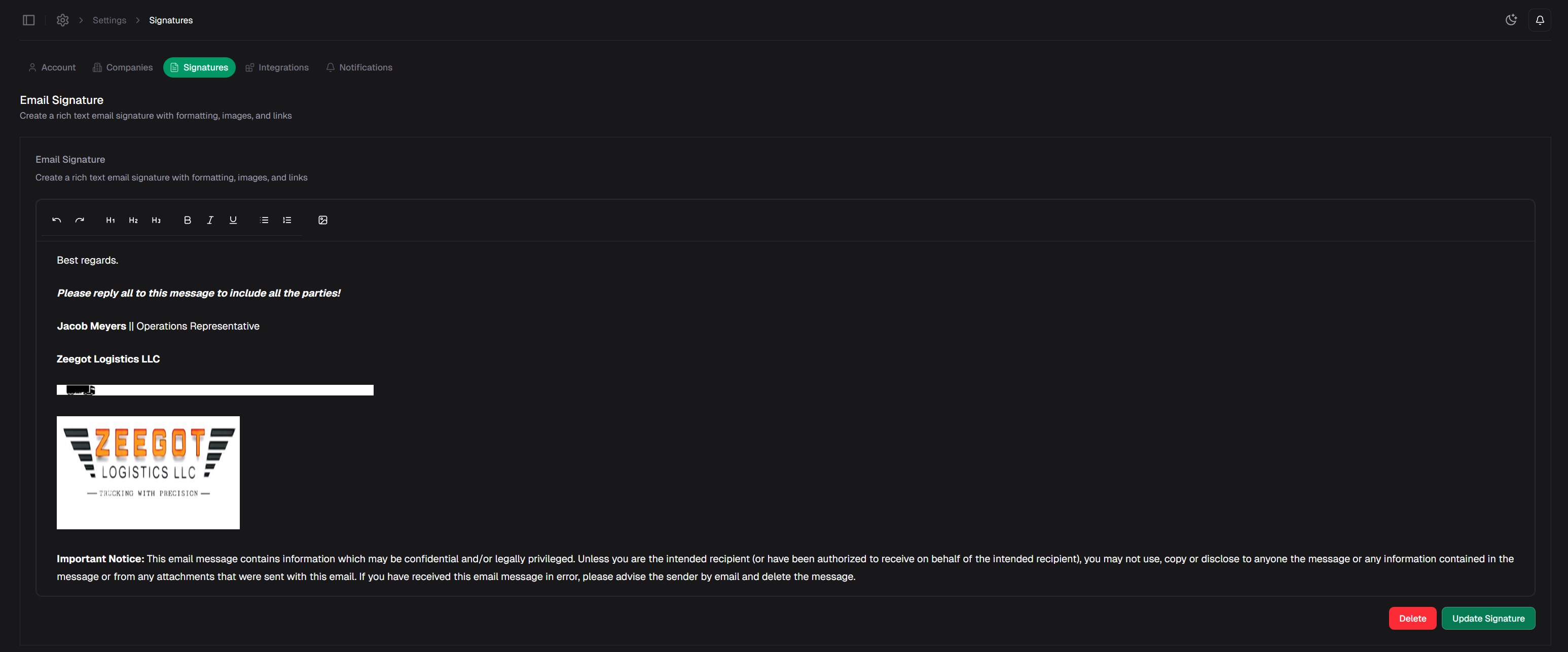
Once created, your signature will appear in the editor:
Click **Create Signature** or **Add New** to get started.
Once created, your signature will appear in the editor:
 ## What to Include in Your Signature
A professional email signature typically includes:
### Essential Elements
**Full Name**\
Your first and last name for clear identification.
**Job Title**\
Your role in the company (e.g., Dispatcher, Operations Manager, Owner).
**Company Name**\
Your carrier company name.
**Contact Information**
* Phone number (direct line or mobile)
* Email address
* Optional: Fax number
### Optional Elements
**Company Address**\
Physical business address (helpful for brokers and clients).
**Website**\
Your company website URL.
**DOT Number**\
Your USDOT number for easy reference.
**MC Number**\
Your Motor Carrier number.
**Social Media Links**\
Professional social media profiles (LinkedIn, etc.).
**Legal Disclaimer**\
Any required legal or confidentiality notices.
## Signature Best Practices
* Use a clean, simple format
* Avoid excessive colors or fonts
* No unprofessional quotes or images
* Match your company's branding
* Limit to 4-6 lines of text
* Include only essential information
* Avoid lengthy disclaimers unless required
* Don't overwhelm recipients with too much information
* Use standard fonts (Arial, Helvetica, Times New Roman)
* Ensure text is readable (minimum 10pt font)
* Test on mobile devices
* Avoid complex HTML that may not render properly
* Update contact info when it changes
* Review and refresh periodically
* Update job title if promoted
* Remove outdated information
## Example Signatures
### Simple Professional Signature
```
John Smith
Dispatcher | ABC Logistics
Phone: (555) 123-4567
Email: john@abclogistics.com
```
### Detailed Company Signature
```
John Smith
Operations Manager
ABC Logistics, Inc.
Phone: (555) 123-4567
Mobile: (555) 987-6543
Email: john@abclogistics.com
Website: www.abclogistics.com
123 Main Street, Suite 100
Chicago, IL 60601
USDOT: 123456 | MC: 789012
```
### Minimal Signature
```
John Smith | ABC Logistics
555-123-4567 | john@abclogistics.com
```
## Editing Your Signature
To update your existing signature:
1. Navigate to signature settings using either method above
2. Click on your signature to edit
3. Make your changes in the editor
4. Preview how it will appear in emails
5. Click **Save** to apply changes
Changes to your signature take effect immediately. All new emails will use the updated signature.
## Managing Multiple Signatures
Some users may need different signatures for different purposes:
* **General Business** - Standard signature for broker communication
* **Internal** - Simplified signature for team emails
* **Formal** - Detailed signature for official correspondence
Check with your administrator if you need multiple signature options for different email accounts or purposes.
## Signature and Email Integration
Your signature works seamlessly with Rooler's email integration:
* **Auto-attached** - Added automatically to all outgoing emails
* **Reply & Forward** - Included in replies and forwarded messages
* **Provider Independent** - Works with Gmail, Outlook, and all email providers
* **Synced via Nylas** - Managed through Rooler's email infrastructure
Learn more about email integration in [Email Integration](/integrations/email/accounts).
## Troubleshooting
### Signature Not Appearing in Emails?
If your signature isn't showing in sent emails:
1. Verify you've saved your signature in settings
2. Check that your email integration is properly connected
3. Ensure you're sending emails through Rooler (not external client)
4. Refresh your page and try sending again
5. Contact support if the issue persists
### Signature Formatting Issues?
If your signature looks different in sent emails:
1. Use simple, standard formatting
2. Avoid complex HTML or special characters
3. Test with a simple text-only signature first
4. Ensure recipient's email client supports HTML
5. Some email clients strip certain formatting for security
### Can't Edit Signature?
If you're unable to edit your signature:
1. Check your user permissions with your administrator
2. Ensure you're logged in with the correct account
3. Try accessing via the alternate method (Settings vs Command Palette)
4. Clear your browser cache and try again
5. Contact your administrator for permission issues
## Related Pages
Learn about email integration setup
Composing and sending emails
Manage your profile information
Need help with signatures?
## What to Include in Your Signature
A professional email signature typically includes:
### Essential Elements
**Full Name**\
Your first and last name for clear identification.
**Job Title**\
Your role in the company (e.g., Dispatcher, Operations Manager, Owner).
**Company Name**\
Your carrier company name.
**Contact Information**
* Phone number (direct line or mobile)
* Email address
* Optional: Fax number
### Optional Elements
**Company Address**\
Physical business address (helpful for brokers and clients).
**Website**\
Your company website URL.
**DOT Number**\
Your USDOT number for easy reference.
**MC Number**\
Your Motor Carrier number.
**Social Media Links**\
Professional social media profiles (LinkedIn, etc.).
**Legal Disclaimer**\
Any required legal or confidentiality notices.
## Signature Best Practices
* Use a clean, simple format
* Avoid excessive colors or fonts
* No unprofessional quotes or images
* Match your company's branding
* Limit to 4-6 lines of text
* Include only essential information
* Avoid lengthy disclaimers unless required
* Don't overwhelm recipients with too much information
* Use standard fonts (Arial, Helvetica, Times New Roman)
* Ensure text is readable (minimum 10pt font)
* Test on mobile devices
* Avoid complex HTML that may not render properly
* Update contact info when it changes
* Review and refresh periodically
* Update job title if promoted
* Remove outdated information
## Example Signatures
### Simple Professional Signature
```
John Smith
Dispatcher | ABC Logistics
Phone: (555) 123-4567
Email: john@abclogistics.com
```
### Detailed Company Signature
```
John Smith
Operations Manager
ABC Logistics, Inc.
Phone: (555) 123-4567
Mobile: (555) 987-6543
Email: john@abclogistics.com
Website: www.abclogistics.com
123 Main Street, Suite 100
Chicago, IL 60601
USDOT: 123456 | MC: 789012
```
### Minimal Signature
```
John Smith | ABC Logistics
555-123-4567 | john@abclogistics.com
```
## Editing Your Signature
To update your existing signature:
1. Navigate to signature settings using either method above
2. Click on your signature to edit
3. Make your changes in the editor
4. Preview how it will appear in emails
5. Click **Save** to apply changes
Changes to your signature take effect immediately. All new emails will use the updated signature.
## Managing Multiple Signatures
Some users may need different signatures for different purposes:
* **General Business** - Standard signature for broker communication
* **Internal** - Simplified signature for team emails
* **Formal** - Detailed signature for official correspondence
Check with your administrator if you need multiple signature options for different email accounts or purposes.
## Signature and Email Integration
Your signature works seamlessly with Rooler's email integration:
* **Auto-attached** - Added automatically to all outgoing emails
* **Reply & Forward** - Included in replies and forwarded messages
* **Provider Independent** - Works with Gmail, Outlook, and all email providers
* **Synced via Nylas** - Managed through Rooler's email infrastructure
Learn more about email integration in [Email Integration](/integrations/email/accounts).
## Troubleshooting
### Signature Not Appearing in Emails?
If your signature isn't showing in sent emails:
1. Verify you've saved your signature in settings
2. Check that your email integration is properly connected
3. Ensure you're sending emails through Rooler (not external client)
4. Refresh your page and try sending again
5. Contact support if the issue persists
### Signature Formatting Issues?
If your signature looks different in sent emails:
1. Use simple, standard formatting
2. Avoid complex HTML or special characters
3. Test with a simple text-only signature first
4. Ensure recipient's email client supports HTML
5. Some email clients strip certain formatting for security
### Can't Edit Signature?
If you're unable to edit your signature:
1. Check your user permissions with your administrator
2. Ensure you're logged in with the correct account
3. Try accessing via the alternate method (Settings vs Command Palette)
4. Clear your browser cache and try again
5. Contact your administrator for permission issues
## Related Pages
Learn about email integration setup
Composing and sending emails
Manage your profile information
Need help with signatures?