

Overview
Rooler uses an invitation-based authentication system to ensure that only authorized users can access your organization’s data. Account security is critical in protecting your carrier operations, driver information, and client data.Logging In
Access your Rooler account at app.rooler.ai.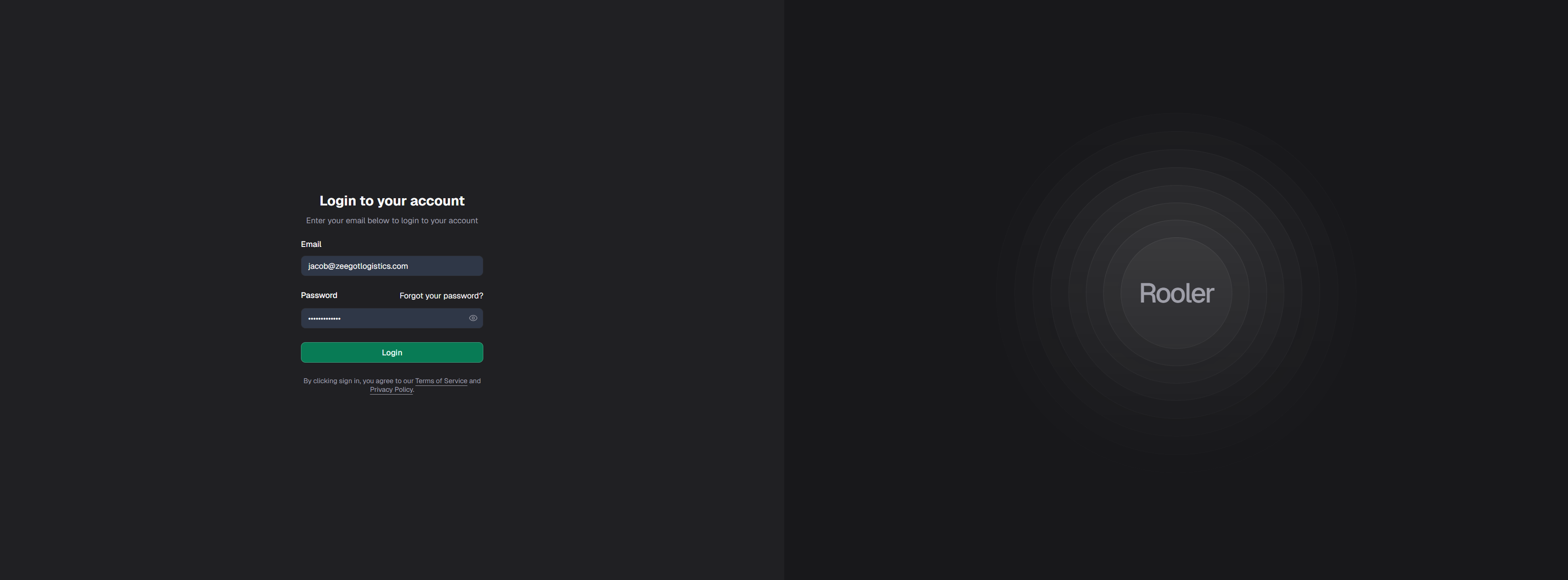
- Email - The email address associated with your invitation
- Password - Your current password (temporary password if first login)
After logging in for the first time, you’ll be required to change your temporary password.
First-Time Login
When you receive your invitation email, you’ll be provided with:- Your login email address
- A temporary password
Change Your Password
For security, you must change your temporary password on first login.- After logging in, navigate to your profile by clicking your name in the bottom left corner
- Click the Change Password button
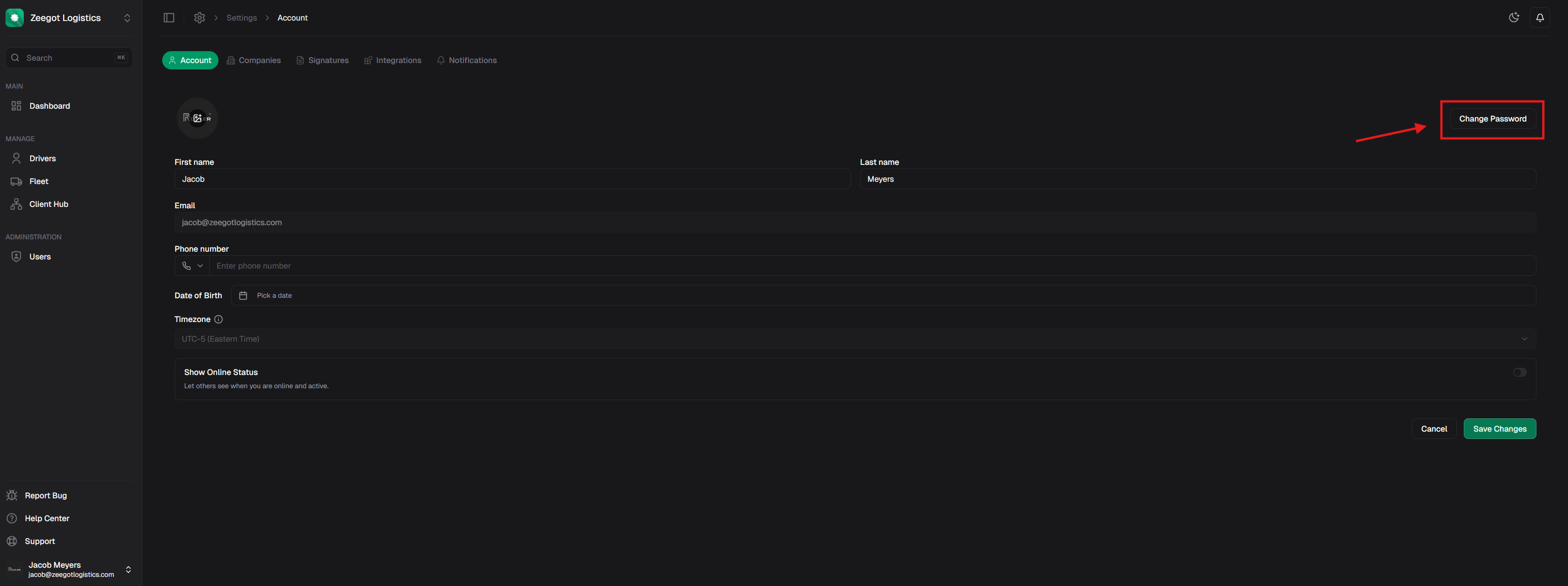
- Enter your current password and choose a new strong password
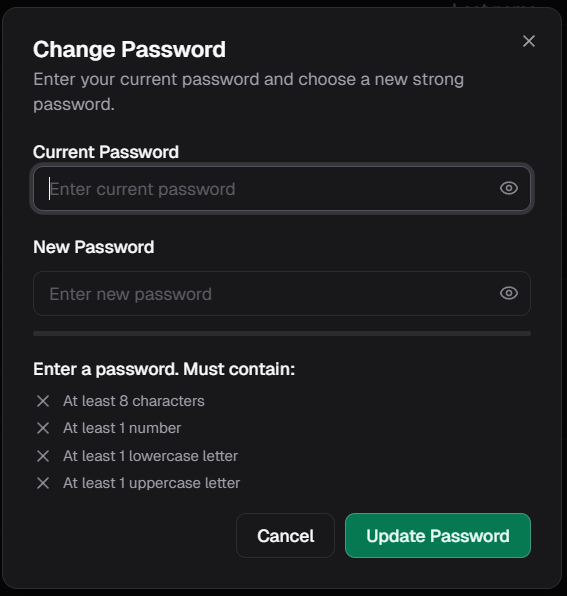
Password Requirements
Your new password must meet these security requirements:- At least 8 characters
- At least 1 number
- At least 1 lowercase letter
- At least 1 uppercase letter
Changing Your Password
You can change your password at any time from your profile settings:- Click your name in the bottom left corner
- Select Profile
- Click Change Password
- Enter your current password
- Enter and confirm your new password
- Click Update Password
If you’ve forgotten your password, see the Forgot Password guide.
Session Management
Rooler keeps you logged in for security and convenience. Your session will:- Remain active while you’re using the application
- Expire after extended periods of inactivity
- End when you explicitly log out
Logging Out
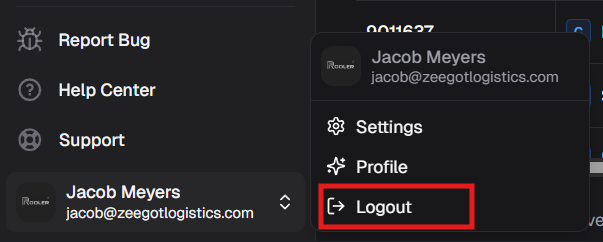
To log out of your account:- Click your name in the bottom left corner
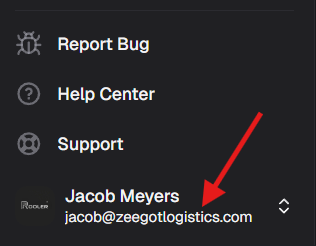
- Select Logout
Security Best Practices
Use Strong, Unique Passwords
Use Strong, Unique Passwords
- Create passwords with a mix of uppercase, lowercase, numbers, and symbols
- Avoid using personal information or common words
- Use a different password for Rooler than other services
- Consider using a password manager
Protect Your Credentials
Protect Your Credentials
- Never share your password with anyone, including coworkers
- Don’t write down your password in easily accessible places
- Be cautious of phishing emails asking for login information
- Rooler support will never ask for your password
Monitor Account Activity
Monitor Account Activity
- Regularly review your account activity
- Report any suspicious activity to your administrator
- Change your password if you suspect unauthorized access
Keep Your Browser Updated
Keep Your Browser Updated
- Use the latest version of modern browsers (Chrome, Firefox, Safari, Edge)
- Keep your operating system and browser updated with security patches
- Clear browser cache and cookies periodically
Troubleshooting
Can’t Log In?
If you’re having trouble logging in:- Verify your credentials - Double-check your email and password
- Check your invitation email - Ensure you’re using the correct email address
- Reset your password - Use the Forgot Password feature
- Contact your administrator - They can verify your account status
- Contact support - If issues persist, reach out to support@rooler.ai
Account Locked?
If you enter incorrect credentials multiple times, your account may be temporarily locked for security. Wait a few minutes and try again, or contact your administrator.Need Help?
Forgot Password
Reset your password if you can’t log in
Profile Settings
Manage your account information
Contact Support
Get help from our support team