

Overview
Email signatures are essential for maintaining professional communication with your clients and brokers. When you set up a signature in Rooler, it will be automatically attached to every email you send through the platform’s email integration.Your signature helps identify you, provides contact information, and adds a professional touch to all your email communications.
Why Use Email Signatures?
- Professional Identity - Clearly identify yourself in every email
- Contact Information - Provide your phone, email, and company details
- Consistent Branding - Maintain company branding across all communications
- Legal Compliance - Include required business information
- Save Time - Automatically added to every email
Accessing Signature Settings
You can access your signature settings in two ways:- Quick Access (Command Palette)
- Via Settings
Press 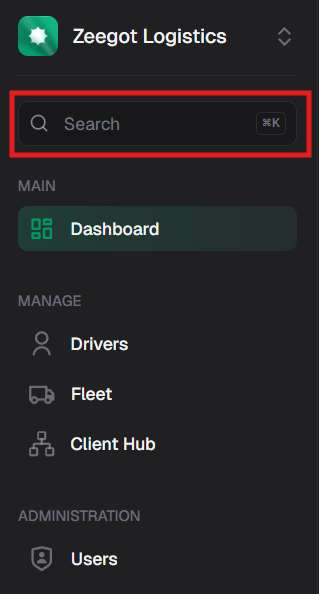
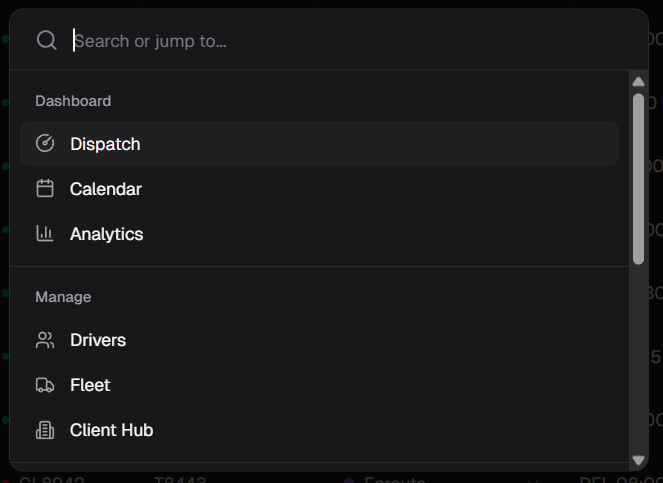
Ctrl+K (or Cmd+K on Mac) to open the command palette: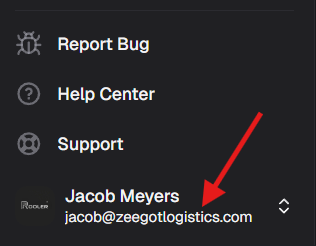
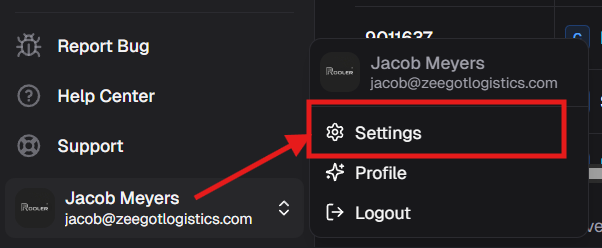
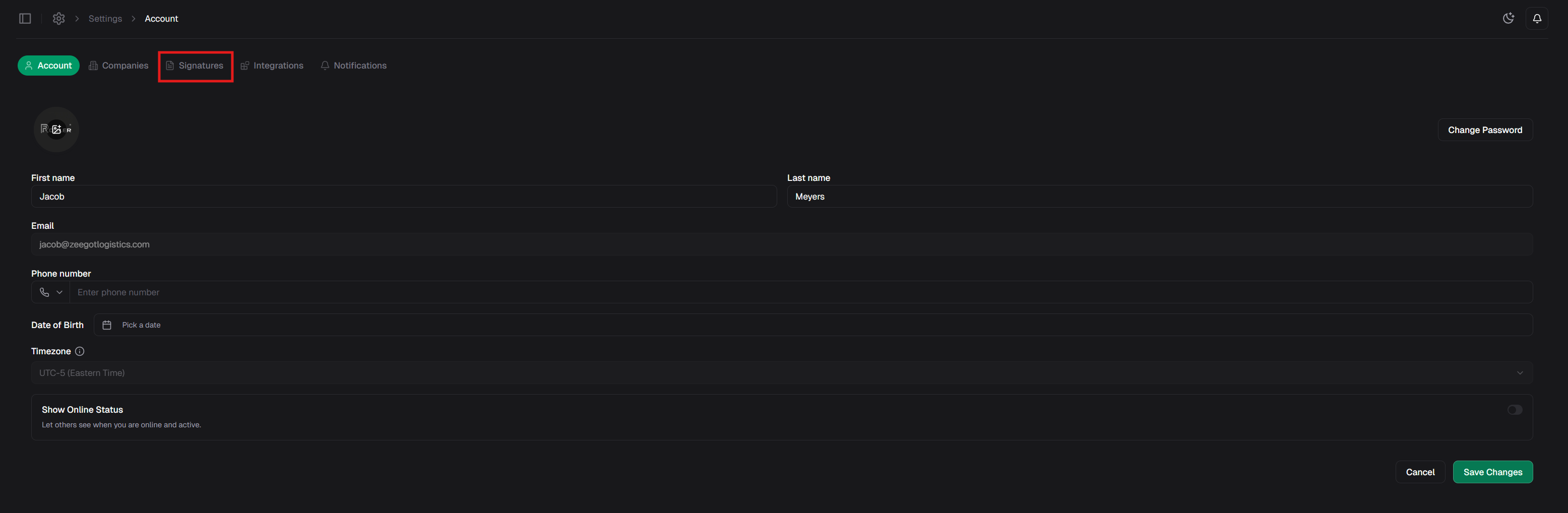
Creating Your Signature
- First Time Setup
- Signature Example
If you haven’t created a signature yet, you’ll see an empty signature page: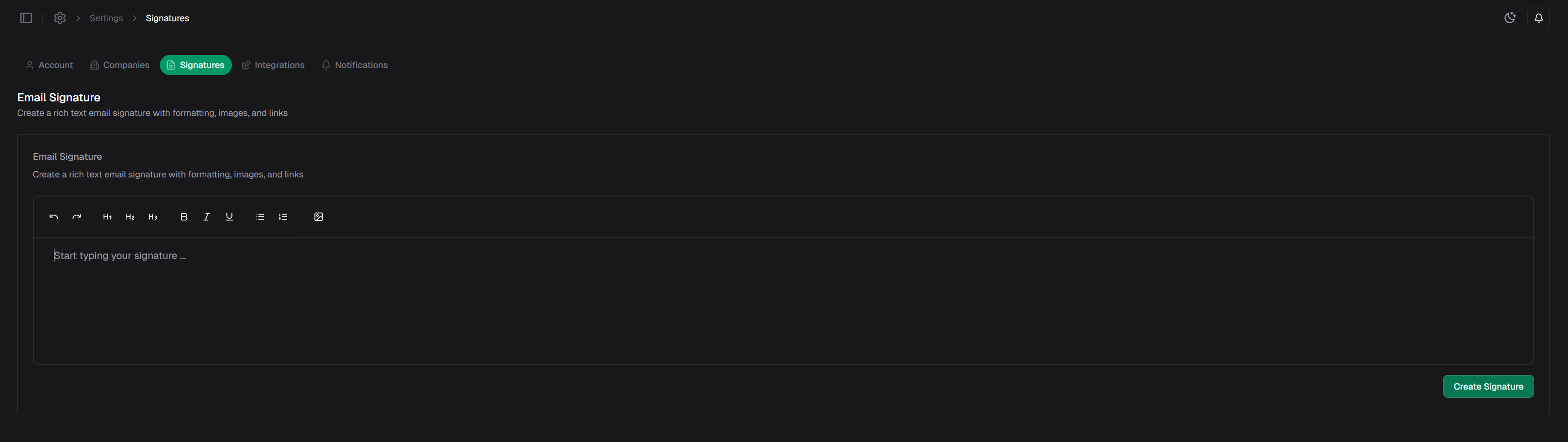
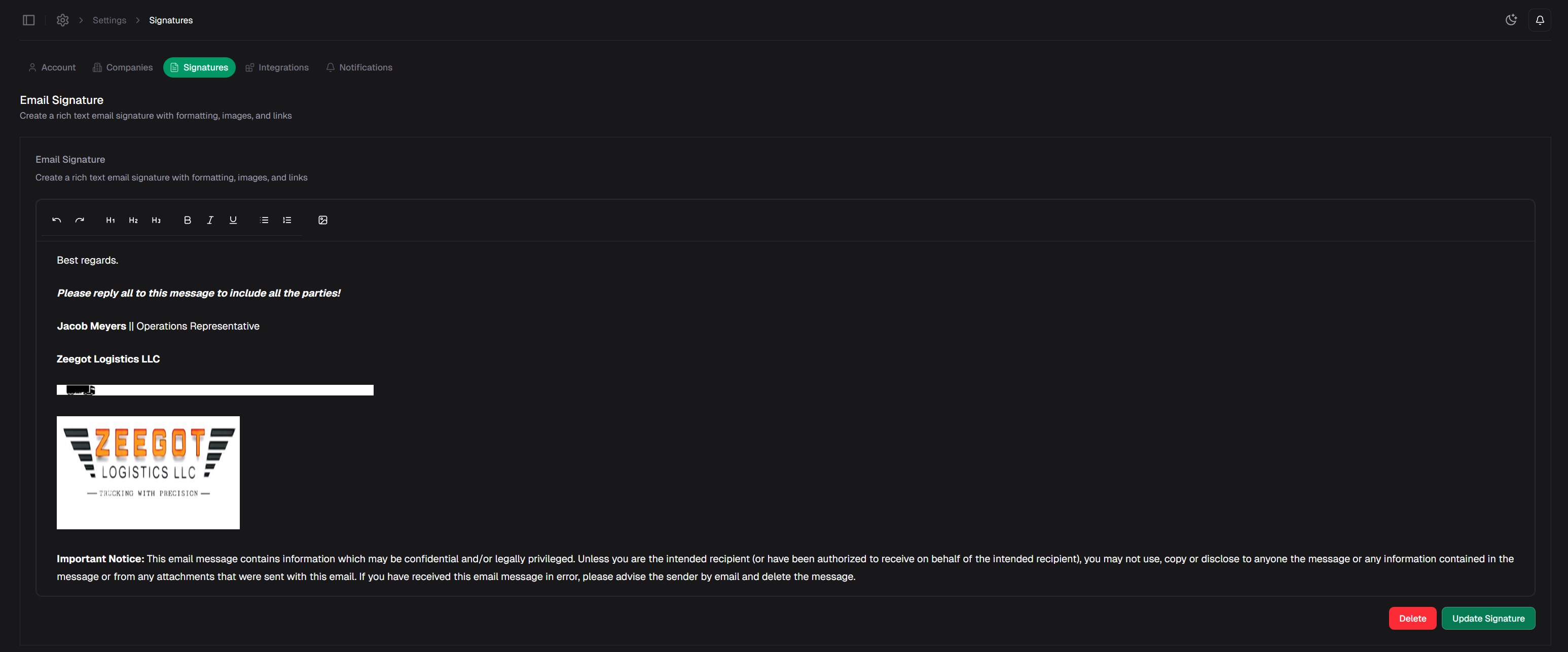
What to Include in Your Signature
A professional email signature typically includes:Essential Elements
Full NameYour first and last name for clear identification. Job Title
Your role in the company (e.g., Dispatcher, Operations Manager, Owner). Company Name
Your carrier company name. Contact Information
- Phone number (direct line or mobile)
- Email address
- Optional: Fax number
Optional Elements
Company AddressPhysical business address (helpful for brokers and clients). Website
Your company website URL. DOT Number
Your USDOT number for easy reference. MC Number
Your Motor Carrier number. Social Media Links
Professional social media profiles (LinkedIn, etc.). Legal Disclaimer
Any required legal or confidentiality notices.
Signature Best Practices
Keep It Professional
Keep It Professional
- Use a clean, simple format
- Avoid excessive colors or fonts
- No unprofessional quotes or images
- Match your company’s branding
Keep It Concise
Keep It Concise
- Limit to 4-6 lines of text
- Include only essential information
- Avoid lengthy disclaimers unless required
- Don’t overwhelm recipients with too much information
Make It Accessible
Make It Accessible
- Use standard fonts (Arial, Helvetica, Times New Roman)
- Ensure text is readable (minimum 10pt font)
- Test on mobile devices
- Avoid complex HTML that may not render properly
Keep It Updated
Keep It Updated
- Update contact info when it changes
- Review and refresh periodically
- Update job title if promoted
- Remove outdated information
Example Signatures
Simple Professional Signature
Detailed Company Signature
Minimal Signature
Editing Your Signature
To update your existing signature:- Navigate to signature settings using either method above
- Click on your signature to edit
- Make your changes in the editor
- Preview how it will appear in emails
- Click Save to apply changes
Managing Multiple Signatures
Some users may need different signatures for different purposes:- General Business - Standard signature for broker communication
- Internal - Simplified signature for team emails
- Formal - Detailed signature for official correspondence
Check with your administrator if you need multiple signature options for different email accounts or purposes.
Signature and Email Integration
Your signature works seamlessly with Rooler’s email integration:- Auto-attached - Added automatically to all outgoing emails
- Reply & Forward - Included in replies and forwarded messages
- Provider Independent - Works with Gmail, Outlook, and all email providers
- Synced via Nylas - Managed through Rooler’s email infrastructure
Troubleshooting
Signature Not Appearing in Emails?
If your signature isn’t showing in sent emails:- Verify you’ve saved your signature in settings
- Check that your email integration is properly connected
- Ensure you’re sending emails through Rooler (not external client)
- Refresh your page and try sending again
- Contact support if the issue persists
Signature Formatting Issues?
If your signature looks different in sent emails:- Use simple, standard formatting
- Avoid complex HTML or special characters
- Test with a simple text-only signature first
- Ensure recipient’s email client supports HTML
- Some email clients strip certain formatting for security
Can’t Edit Signature?
If you’re unable to edit your signature:- Check your user permissions with your administrator
- Ensure you’re logged in with the correct account
- Try accessing via the alternate method (Settings vs Command Palette)
- Clear your browser cache and try again
- Contact your administrator for permission issues
Related Pages
Email Integration
Learn about email integration setup
Email Actions
Composing and sending emails
Profile Settings
Manage your profile information
Get Support
Need help with signatures?