

Overview
Your profile contains your personal information, contact details, and account preferences. Keeping your profile up to date ensures smooth communication and proper identification within your organization.Accessing Your Profile
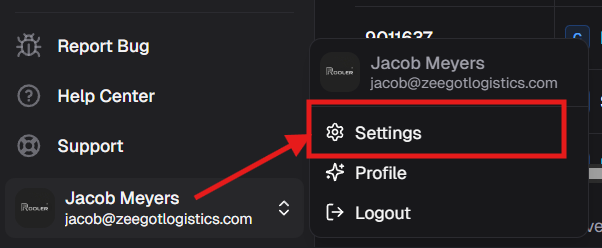
You can access your profile settings in two ways:- Via Settings
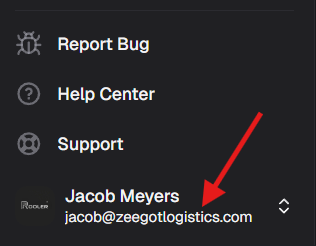
- Click your name in the bottom left corner
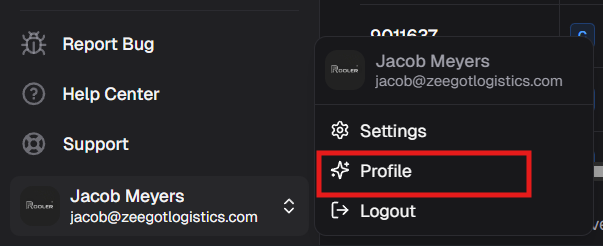
- Click Profile
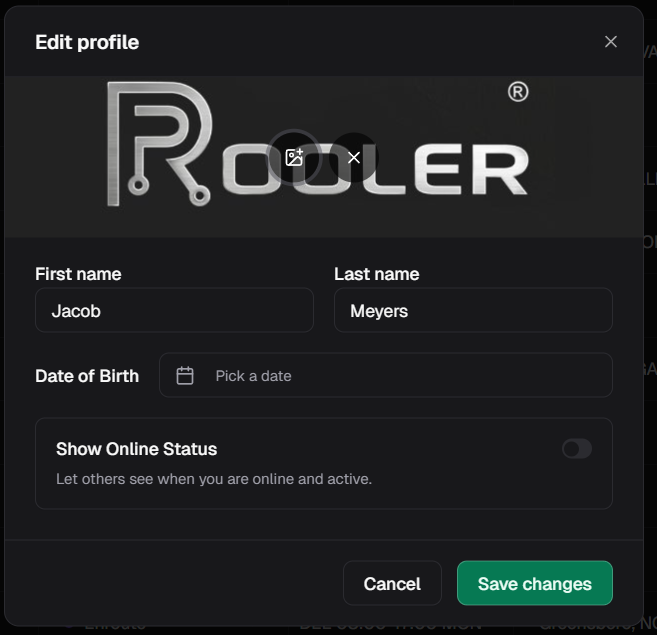
- Your profile dialog will open
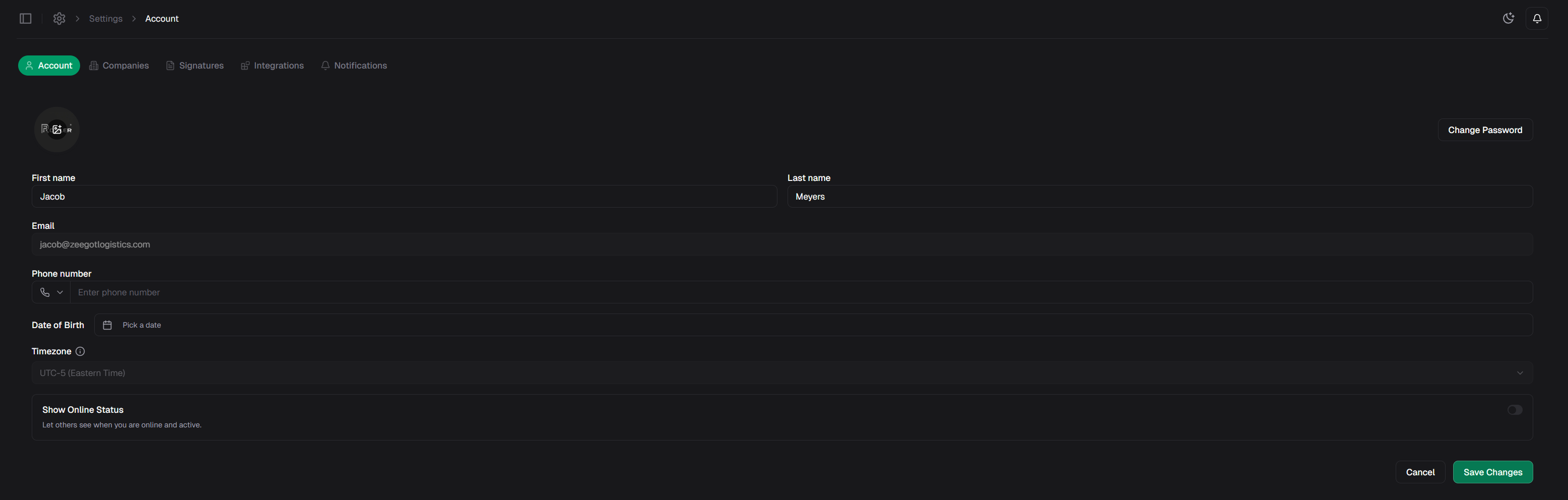
Profile Information
Your profile contains the following information:Personal Details
First NameYour given name as it appears in the system. Last Name
Your surname or family name. Email
Your email address used for:
- Account authentication
- System notifications
- Communication from Rooler
- Integration connections (Email, Telegram)
Your email address is set by your administrator and typically cannot be changed directly. Contact your admin if you need to update your email.
Your contact phone number for:
- Emergency communications
- SMS notifications (if enabled)
- Team contact information
Used for identification and internal records. Timezone
Your local timezone ensures that all times and dates are displayed correctly for your location. This affects:
- Appointment times
- Load schedules
- Activity timestamps
- Report generation
Visibility Settings
Show Online StatusControl whether other users can see when you’re online and active in Rooler.
- Enabled - Others can see when you’re online
- Disabled - Your online status is hidden
Editing Your Profile
To update your profile information:- Access your profile using either method above
- Click on any field you want to edit
- Enter your new information
- Click Save Changes at the bottom
Changing Your Password
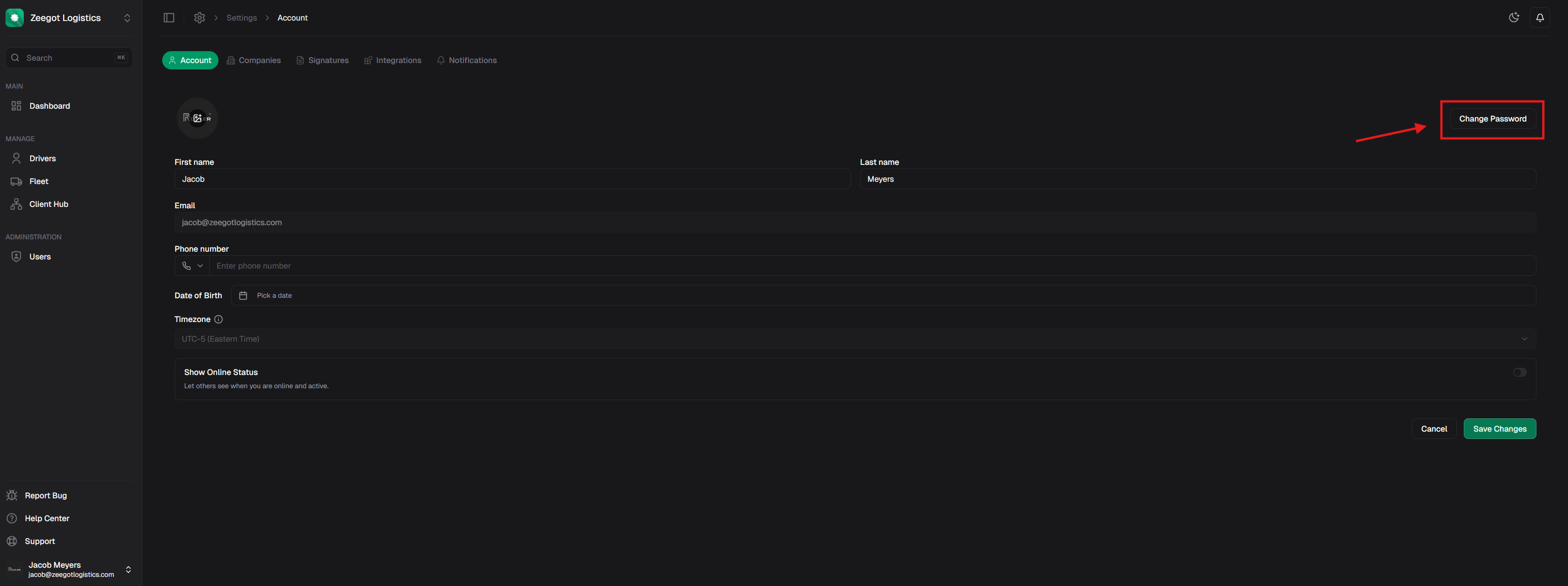
You can change your password directly from your profile:- Open your profile settings
- Click the Change Password button in the top right
- Enter your current password and new password
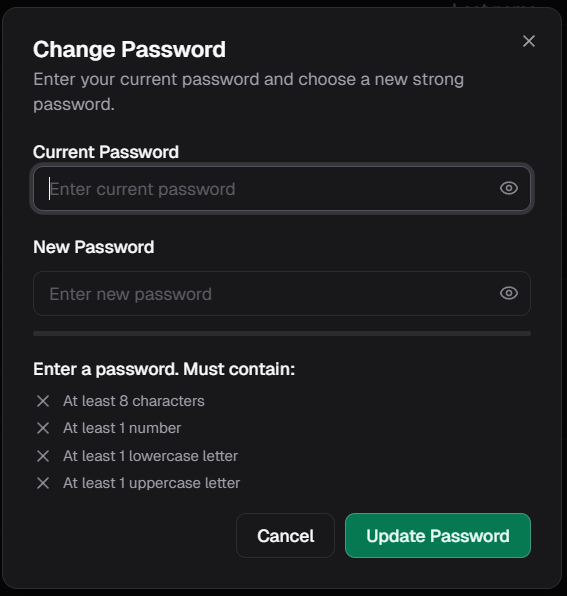
- Click Update Password
Profile Picture
Your profile picture helps team members identify you quickly throughout the application.Profile picture functionality is managed by your administrator. Contact your admin if you need to update your profile photo.
Best Practices
Keep Information Current
Keep Information Current
- Update your phone number if it changes
- Verify your timezone when traveling or relocating
- Keep your emergency contact information accurate
Use Professional Information
Use Professional Information
- Use your real name for clear identification
- Provide accurate contact details
- Set an appropriate profile picture
Privacy Considerations
Privacy Considerations
- Be mindful of what information you make visible
- Use the online status toggle to control your availability
- Only share necessary personal information
Timezone Accuracy
Timezone Accuracy
- Verify your timezone is set correctly
- Update it when traveling to different time zones
- This ensures accurate scheduling and communication
Troubleshooting
Can’t Edit Email Address?
Your email address is typically set by your administrator and cannot be changed directly through your profile. If you need to update your email:- Contact your organization’s administrator
- They can update your email in the user management system
- You’ll receive new login credentials at your updated email
Changes Not Saving?
If your profile changes aren’t saving:- Ensure all required fields are filled out
- Check that your information meets any format requirements
- Verify you have a stable internet connection
- Try refreshing the page and making changes again
- Contact support if the issue persists
Wrong Timezone Showing?
If times and dates appear incorrect:- Open your profile settings
- Verify your timezone setting
- Update to your correct local timezone
- Save changes
- Refresh the page to see corrected times
Related Pages
Authentication
Learn about login and password security
Signature
Set up your digital signature
User Management
For admins: Managing team members
Get Support
Need help with your profile?